How to start using Help Center
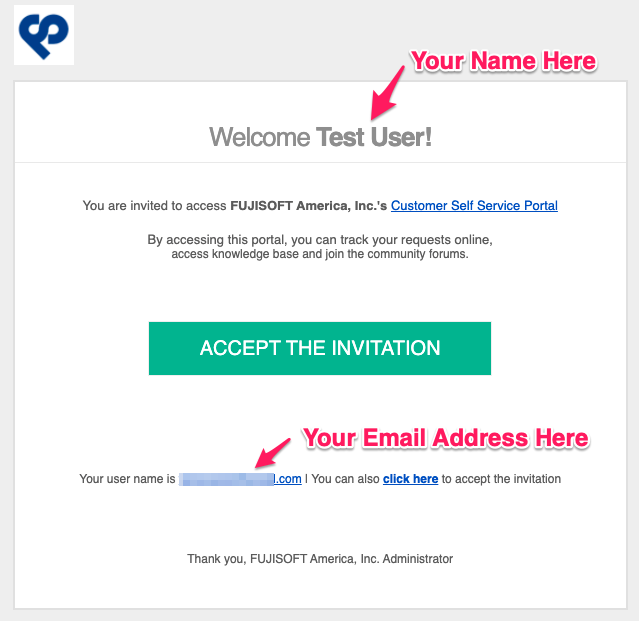
Check your email inbox and find an invitation for FUJISOFT America's Help Center.
Subject:
FUJISOFT America, Inc. Customer Self Service Portal Invitation
- Click " ACCEPT THE INVITATION " and Open the Help Center page
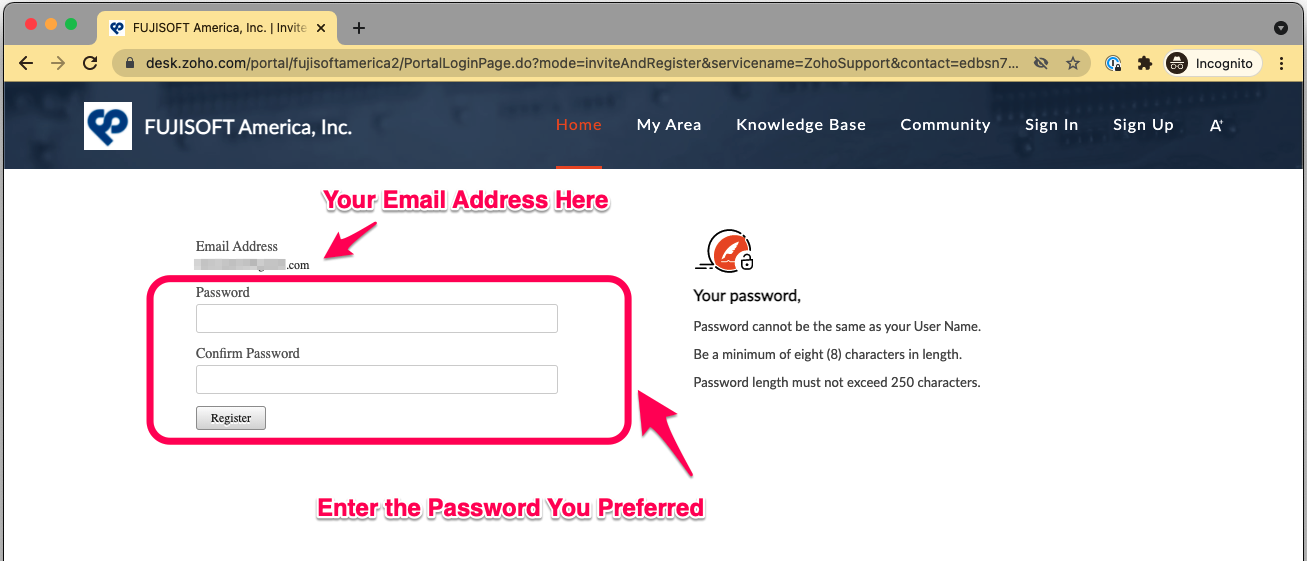
- Enter the password you preferred twice on the Help Center page and click " Register ".
- Edit your profile if necessary.
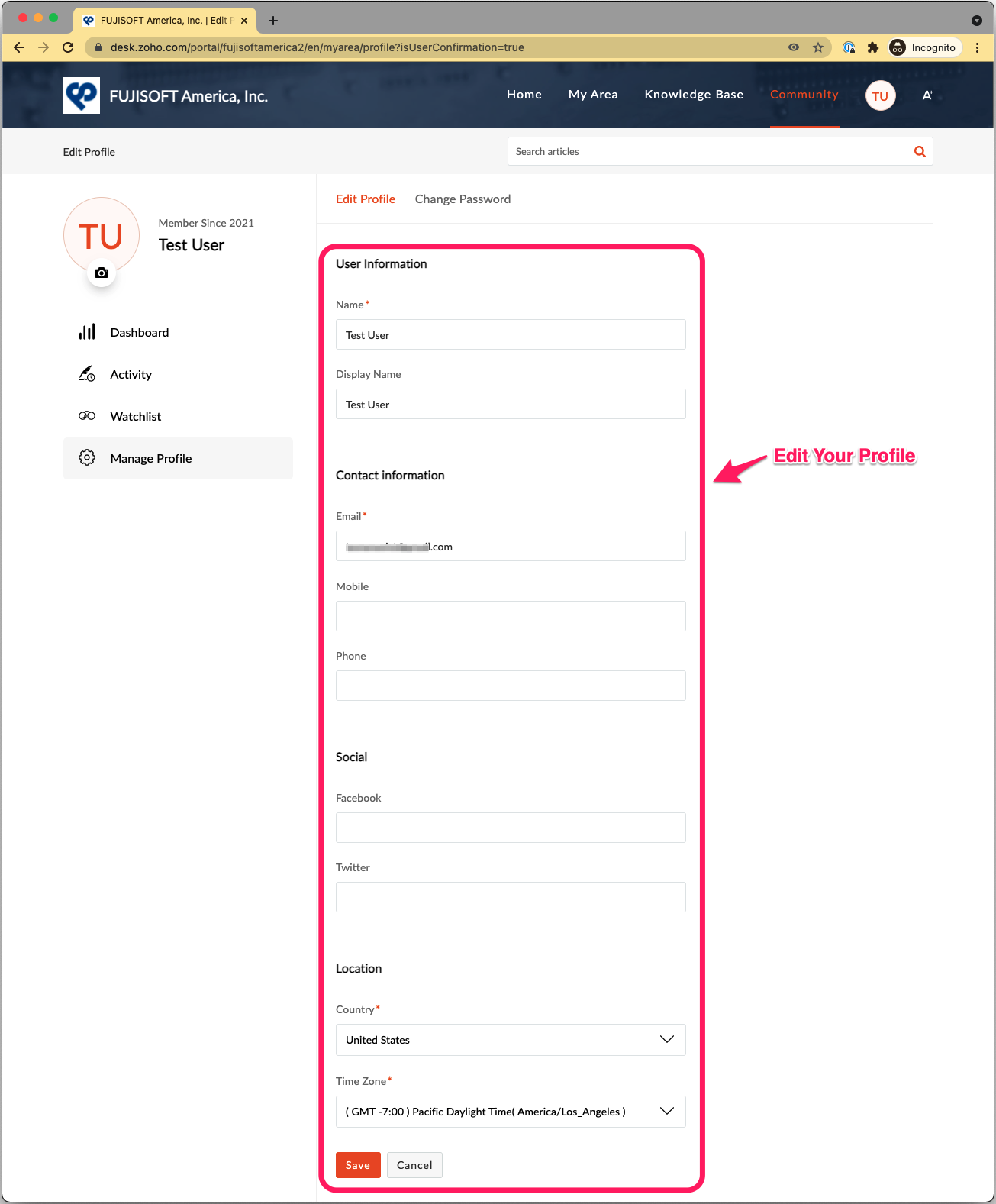
All set.
 Anytime you need assistance, please visit Help Center . Please use your Email address and your Password to use Help Center.
Related Articles
How to sign in to Help Center
Go to https://help.nagatoshi.support/portal/en/home Click "Sign In" Enter email and password and click the "Sign In " button. All set
How to use a Knowledge Base
1. Sign in to Help Center https://help.nagatoshi.support/portal/en/home 2. Click "Knowledge Base". The specific article can be found by entering the keyword into the Search field. The articles related to the Group are displayed at the top of the ...
How to View Tickets
Sign In to Help Center. https://help.nagatoshi.support/portal/en/home Go to "My Area". Find the ticket through the following: - By sorting through Status - By sorting through who created the ticket - By sorting through Departments - By searching ...
How to create and manage tickets
Manage Tickets Sign In to Help Center. https://help.nagatoshi.support/portal/en/home Go to "My Area". Click your department name in the dropdown. The tickets can be searched by entering keywords in the "Search field". To see tickets related to your ...
Generate PO
Generate SO Items POs can be generated after Sales Orders with today's Expected Shipment Day are created and Confirmed. Go to Zoho Creator -> Generate SO Items Last Synced Status: shows the status of last synchronization of Zoho Analytics Last Synced ...