PriceList Update
- Go to Zoho Creator -> Price list Updates
- Select the price List from the dropdown
- The prices can be entered directly in the table or in the search field
- To enter New Price in table. Find the item to update and enter value in "New Price (PC/LB)" or "New Price (BX). Those 2 field are connected and when value is entered in one of them, the second is automatically inserted.
- To enter New Price in Search. Click SKU in Search line and type sku or select from the dropdown. Enter value in "New Price (PC/LB)" or "New Price (BX). Those 2 field are connected and when value is entered in one of them, the second is automatically inserted. Also values in the Items table will be updated.
- To add a new item to the price list. Click SKU in Search line and type sku or select from the dropdown. Enter value in "New Price (PC/LB)" or "New Price (BX). Those 2 field are connected and when value is entered in one of them, the second is automatically inserted. The new item will be added to the table
- Click Save Price List
- Continue with other Price Lists
- Click Update Price Lists when all changes are done. At this time it will update all Saved price Lists with changes.
The new screen with a progress bar will be displayed.
Progress bar elements include:
Names of the updated Price Lists – As each name’s progress bar advances, it indicates the progress of that specific Price List update.
When the update is done, you will be redirected to the new Price List update screen
The logs can be checked in Price List Updates -> Price List Log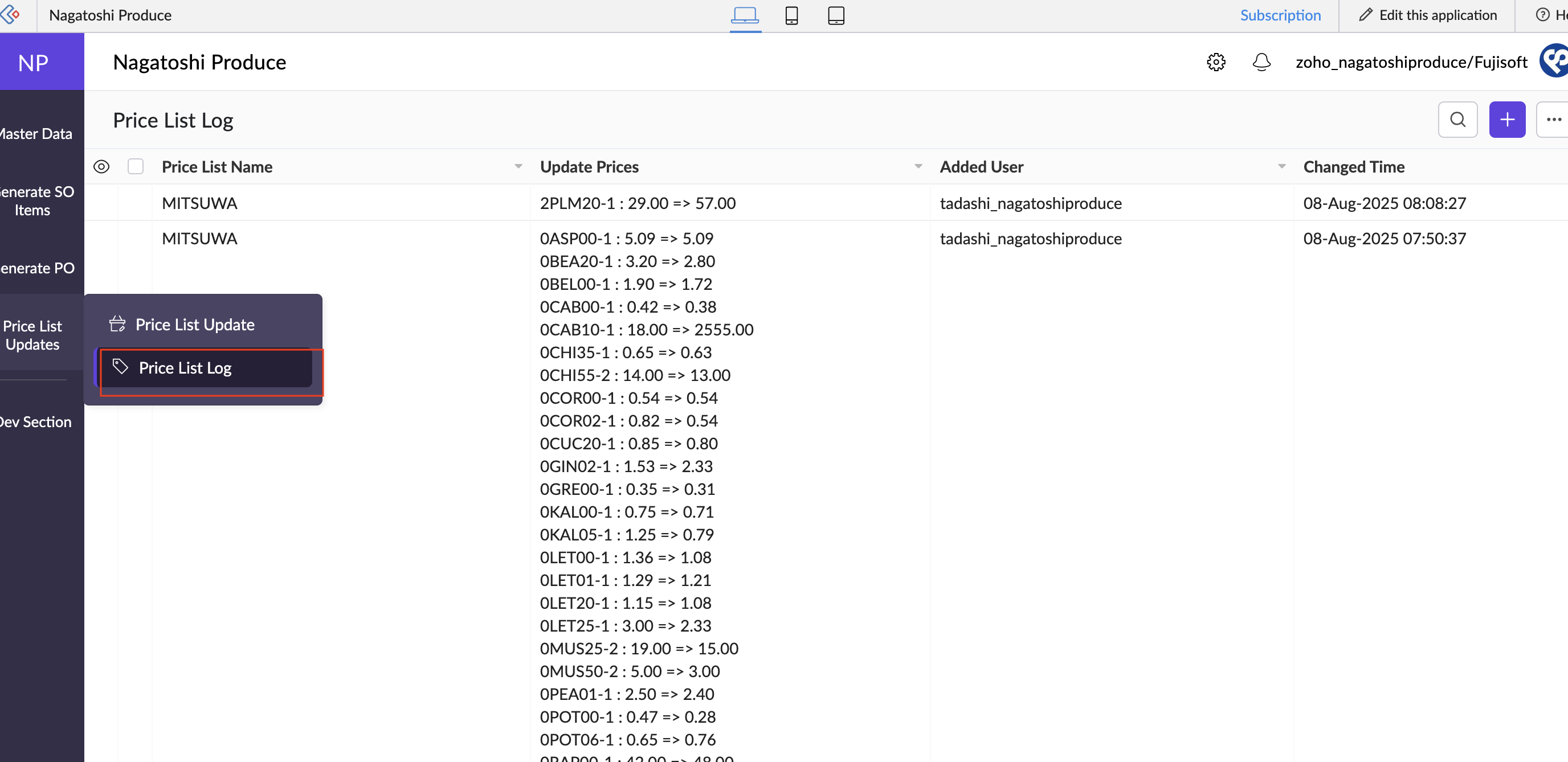
Related Articles
Nothing happened when "Update Price Lists" is clicked
When "Update Price Lists" is clicked, and it is not redirecting to the new screen, please check you have popup enabled Here is google Chrome popup enable guide: Block or allow pop-ups in ChromePrice List Export
To export Price List from Creator: 1. Go to Zoho Creator -> Price List Updates -> Price List Export. It may take a few seconds to load the prices. 2. Once the page is loaded, Click search icon on the top right side 3. Enter Price List Name and click ...Create Invoice/Package/Shipment
Create Invoice/Package/Shipment When SO is Confirmed and finalized: Go to Zoho Inventory -> select Sales Order Click “INVOICE/PACK/SHIP” button on the top panel. The new screen will be opened. The progress will be displayed. The price from the price ...All Vendor-Item Relations
List of All Vendors-Item Relations is used in generating PO. Each items should have a Vendors relation and suggested PO Price. Register a new Vendor-Item Relation To create a new record: go to Zoho Creator -> Master Data -> All Vendor-Item Relations ...Zoho Books default features
Dashboard Items Items Price Lists Inventory Adjustments Banking Sales Customers Estimates Retainer Invoices Sales Orders Invoices Payments Received Recurring Invoices Credit Notes Purchases Vendors Expenses Recurring Expenses Purchase Orders Bills ...